
How to Stop Doomscrolling on Android (Without Deleting Your Apps)
Doomscrolling is not a character flaw. It is an engineering problem, social apps are designed to hold your attention indefinitely and Android makes it frictionless to open them the second boredom appears.
Deleting TikTok or Instagram is the nuclear option and for most people it does not stick. You reinstall within a week, feel guilty and repeat. What actually works is adding friction at the moment your brain goes on autopilot, not removing the app entirely.
Why You Keep Doomscrolling Even When You Know You Should Stop
The scroll loop runs on two things: accessibility and reward. TikTok is one tap from your home screen and every swipe has a chance of something genuinely interesting. That variable reward is the same mechanism slot machines use.
Telling yourself to stop does not interrupt the loop. What interrupts the loop is a physical obstacle between your thumb and the app, something that appears in the moment, not something you set in your phone's settings at 11pm and forget by morning.
What Does Not Work (and Why)
Grayscale mode. Some people swear by it. Most scroll just as much in black and white.
Screen time limits with a passcode. If you set your own passcode, you will override the limit when the craving hits. It takes four taps.
Deleting the app. Works for a few days. Then you reinstall "just to check something" and the habit is back by the weekend.
App timers with no blocker. Android's built-in Digital Wellbeing timer shows a warning. You dismiss the warning. The timer restarts tomorrow.
What Actually Works on Android
1. Block the app during the times that matter most
The most effective approach is not blocking the app forever, it is blocking it during specific windows when doomscrolling actually costs you something. Study sessions, work blocks, the first hour of your morning.
CogniFocus does this with Shield, which runs as an Android foreground service. When a blocked app opens during an active focus session, Shield interrupts it before the scroll starts. You see the block, you're pointed back toward what you were doing and the moment breaks.
The key difference from built-in screen time tools: Shield reacts in real time, inside a session you intentionally started. You made a commitment and the app holds it.
2. Add a companion that notices when you drift
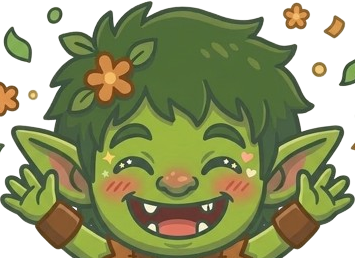
One of the reasons doomscrolling is so easy is that nothing reacts to it. Your phone does not care. The CogniFocus Goblin does, it changes mood when you open a blocked app and recovers when you come back. That reaction creates a tiny moment of accountability that a silent timer never does.
It sounds small. In practice, it shifts the dynamic enough to break autopilot.
3. Use Manual Block for non-session protection
If you want TikTok blocked at bedtime regardless of whether you're in a focus session, Manual Block covers that. You pick the apps, you pick the window and Shield applies outside of sessions too.
This is available in CogniFocus Pro and is useful for the specific pattern of late-night scroll habits that eat into sleep.
4. Design your home screen for friction
Move the apps you doomscroll to a second or third screen. Remove them from your dock. This is not a blocker, it just removes the tap-and-done reflex. Combined with an active Shield session, it gives you two layers of friction.
5. Notice the trigger, not the habit
Doomscrolling usually has a trigger: boredom between tasks, stress about something you're avoiding, the transition moment between finishing one thing and starting the next. If you can name the trigger, you can intercept it.
Starting a focus session before you hit that transition moment is the cleanest way to handle it. You close a task, you're in an active session, the next "reach for the phone" reflex gets caught by Shield before it goes anywhere.
Setting This Up in CogniFocus
- Download CogniFocus from Google Play.
- Open the app and add the social apps you doomscroll most to your block list (TikTok, Instagram, YouTube, Reddit, whatever your pull is).
- Grant Usage Access and Overlay permissions when prompted. These are the two Android permissions Shield needs to watch for blocked apps and appear over them.
- Start a focus session the next time you sit down to work or study.
- When a blocked app opens, Shield will step in. The Goblin will react. Come back to the session.
That is the whole loop. You do not have to be perfect. One less doomscroll per session is progress. The Goblin tracks the clean sessions and the streak system makes it feel like something worth protecting.
The Honest Part
No app fixes doomscrolling completely. If you're in the habit of checking Instagram 30 times a day, adding a blocker during sessions gets you to maybe 20. That is meaningful, it is 10 sessions saved, but it is not zero.
What changes over time is that the reflex starts to lose its automaticity. You catch yourself reaching for the phone. You recognise the habit loop. Eventually you're choosing to scroll instead of just sliding into it, which is a completely different relationship with the app.
CogniFocus does not try to be a willpower substitute. It tries to make the moment of drift visible so you can actually decide.
Download CogniFocus on Google Play, free to start, no credit card required.















 Just Hunt